Quick Access Toolbar
Quick Access Toolbar Customization Menu
Showing posts with label Quick Access Toolbar. Show all posts
Showing posts with label Quick Access Toolbar. Show all posts
Quick Access Toolbar Customization Menu
The Quick
Access Toolbar Customization Menu allows users to add or remove commands to the
Quick Access Toolbar, Open the Quick Access Toolbar Customization Tab or show
the Quick Access Toolbar above or below the Ribbon.
Adding
Commands
To add
commands using the Quick Access Toolbar Customization Menu check the checkbox
of the preset command located on the Quick Access Toolbar Customization Menu.

Removing
Commands
To remove commands from the Quick Access Toolbar
using the Quick Access Toolbar Customization Menu uncheck the command’s
checkbox.

Opening
the Quick Access Toolbar Customization Tab
The Quick
Access Toolbar Customization Tab allows users to add all the commands in Excel
instead of just the preset commands shown on the Quick Access Toolbar
Customization Menu. To open the Quick Access Toolbar Customization Tab select More Commands.

Show
Above the Ribbon
The Show Above the Ribbon command will move
the Quick Access Toolbar above the Ribbon.

Show
Below the Ribbon
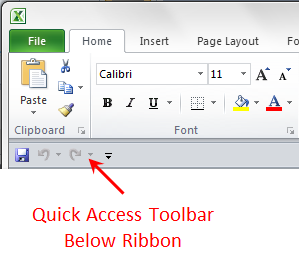
The Show Below the Ribbon command will move
the Quick Access Toolbar below the Ribbon.
See Also:
Quick Access Toolbar Customization Tab
Excel 2010 Quick Access Toolbar
The Quick
Access Toolbar is customizable menu where users can display commonly used
commands for quick access. The commands Save, Undo and Repeat are
generally defaulted to the toolbar. The toolbar can be located in two places.
Adding Commands:
To add
commands to the toolbar users can selected a command from the Quick Access
Toolbar Customization Menu or the Quick Access Toolbar Customization Tab.
Removing Commands:
To remove
command from the toolbar user can simply right click on the command and select Remove from Quick Access Toolbar.
 |
| Remove Command from Quick Access Toolbar |
Display Above Ribbon:
 |
| Quick Access Toolbar Displayed Above Ribbon |
If the toolbar is actively displayed above the ribbon users can select to display the toolbar below the ribbon by right clicking the toolbar and selecting Show Quick Access Toolbar Below the Ribbon.
 |
| Show Quick Access Toolbar Below the Ribbon |
Display Below Ribbon:
 |
| Quick Access Toolbar Displayed Below Ribbon |
If the toolbar is actively displayed below the ribbon users can select to display the toolbar above the ribbon by right clicking the toolbar and selecting Show Quick Access Toolbar Above the Ribbon.
 |
| Show Quick Access Toolbar Above the Ribbon |
Subscribe to:
Posts (Atom)